Keep your work
Save, restore, and share projects
Keep a portable copy of your map setup and bring it back when you need it.
Save your workspace
OpenGeo keeps workspace data in this browser on this device. Download a project file for a separate copy you can restore or share.
- Arrange your layers, apply your queries and styles, and set the map view you want to keep.
- Choose File → Save project. Wait for the Project saved message and check your browser’s downloads.
- Keep the downloaded opengeo-project-YYYY-MM-DD.json file somewhere you can find it. Rename it to describe the work, keeping the .json extension. Save another copy after making changes you want to keep.
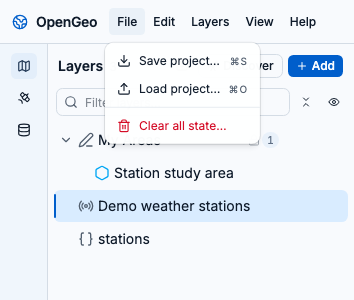
Choose File → Save project to download a JSON copy. This workspace includes imported stations, a saved area, and a remote sample feed.
What the project contains
A project combines your map configuration with locally stored features. It is useful for returning to your work, but it is not an offline archive of every connected source.
- Layers and groups, including their saved queries, visibility, opacity, and styles.
- Imported GeoJSON features and saved areas, including their attributes and geometry.
- Basemap, terrain and scene choices, saved map view, panel visibility, and timeline settings.
- Remote source connections are saved, but ArcGIS and live-feed records are fetched again. Remote imagery and basemap tiles are not bundled into the file.
- Temporary analyzer searches, table filters, and undo history are not part of the project. Keep your original import files separately, too.
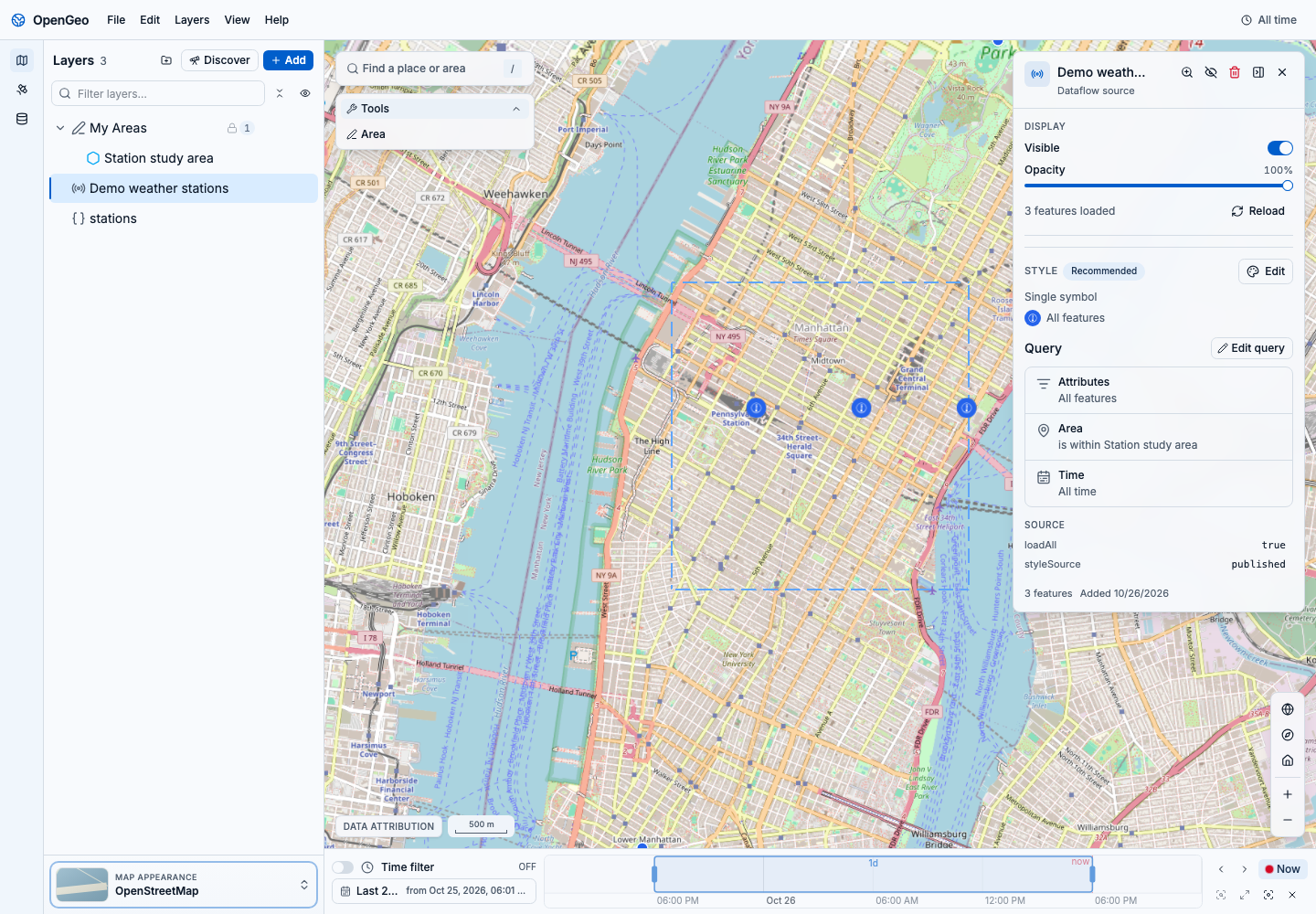
My Areas and the imported stations are stored in the project. Demo weather stations is a remote connection: its query is saved, but its records are fetched again when reopened.
Restore a project
Loading replaces the current workspace; it does not merge the project into your existing layers. Save your current work first if you want to return to it.
- Choose File → Save project to back up the workspace you are about to replace.
- Choose File → Load project and select a project JSON file previously saved by OpenGeo.
- The app reloads with the saved workspace. Check your layers, areas, queries, styles, and timeline. Allow remote sources time to reconnect.
- Use Load project for OpenGeo project files. Use the file import workflow for CSV, GeoJSON, or other source data.
- If the file cannot be read, check that it is a complete OpenGeo project JSON file. Layers with unsupported types or invalid settings can be skipped on restore.
Save a workspace, change an area name, then load the saved copy. Loading replaces the current workspace. Silent walkthrough.
Read the text walkthrough
- Choose File → Save project to download the workspace containing the stations and Station study area.
- Change the area’s name to Temporary name, making the later restore easy to check.
- Choose File → Load project and select the saved JSON file. The app reloads, replacing the current workspace.
- Dismiss the welcome dialog. The Layers panel contains the stations and the restored Station study area. The recording finishes with another Save project action to verify the restored file.