Add data
Browse the data catalog
Find public datasets and feeds by topic or location, then add them to your map.
Find a source
Open Catalog from the app navigation for a full browsing view, or Layers → Find data to search alongside the map.
- Search for a name or topic, such as earthquakes, weather, or roads.
- Use the available catalog filters to narrow the results.
- Open a result to review its details before adding it.
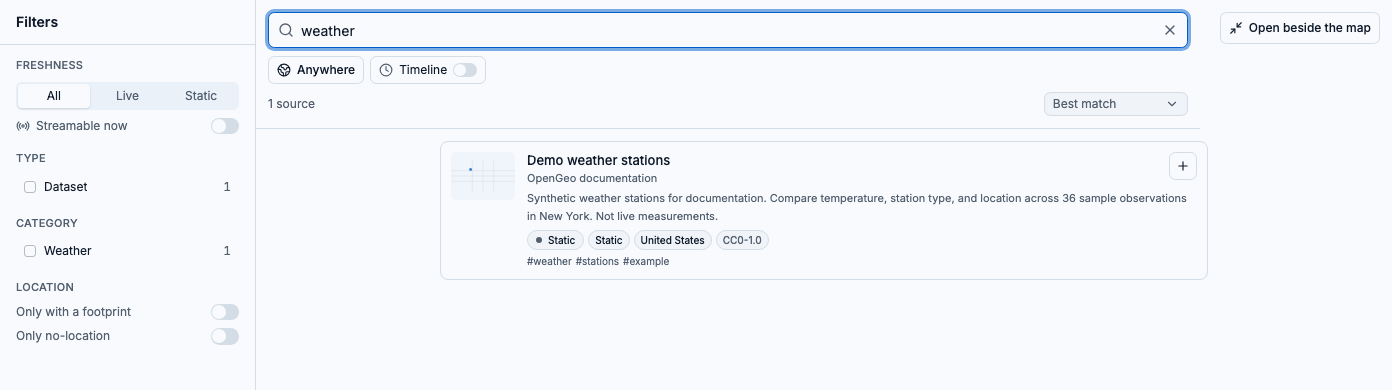
A weather search shows the source type, publisher, and filters. Demo weather stations is synthetic example data used throughout these visuals.
Look near a place
The location control starts at Anywhere. Choose Map view to search around your current map, find a place when place search is available, or choose a saved area. To reuse a place across searches and queries, first save it in My Areas using the map’s drawing or place-search tools.
- Map view follows your map as you pan in the Discover panel. Away from the map page, it uses your last map view.
- Turn on Footprints in the Discover panel to outline the results’ coverage on the map.
- When the timeline is enabled, the catalog’s Timeline toggle can narrow sources by their time coverage.
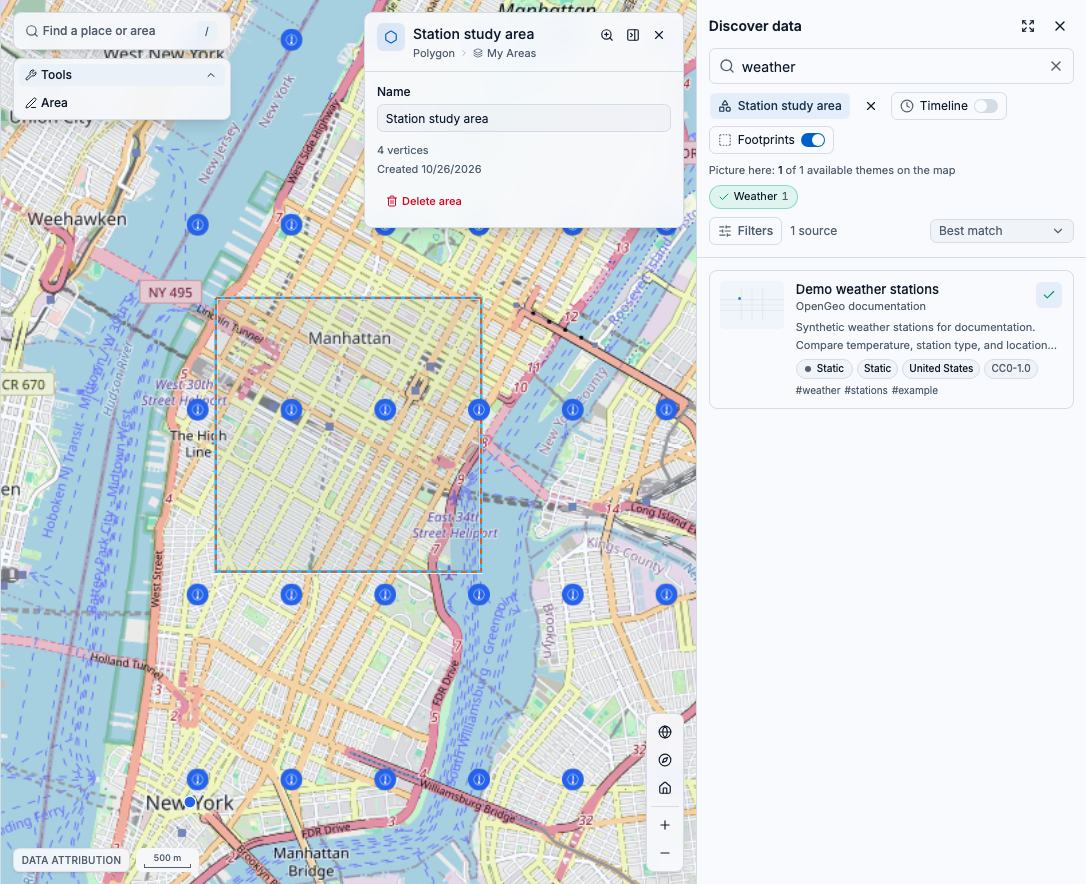
Choose a saved area in Discover and turn on Footprints to compare source coverage with your boundary. Catalog coverage does not filter individual records.
Review a source and add it
Open a result’s Overview for its description, coverage, and update information. The Data tab describes the available data; Access explains how the source can be used.
- Check that the source covers your area and has the kind of data you need. A map image may be useful context, but it is not a table of individual records.
- If you are browsing the full catalog, choose Open beside the map first. Select Add to map, choose filters if query setup opens, and finish adding the layer.
- Use Zoom to footprint to visit its coverage. Star a source to find it again, or use Copy link to share its catalog entry.
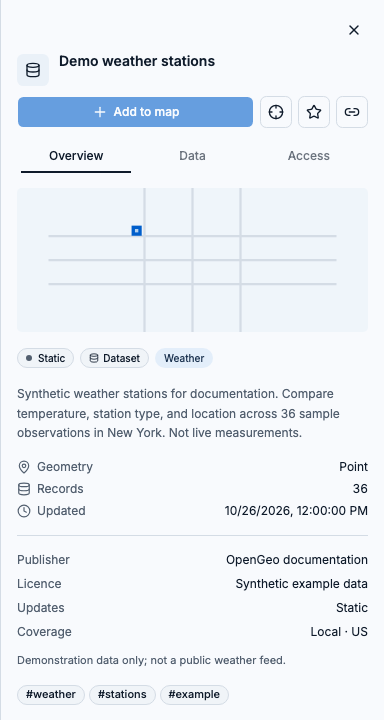
Review the description, record count, coverage, and publisher. Data and Access provide more detail about the source.
Coverage is a starting point
Catalog searches match source coverage, not individual features. A source that covers your area may still have no records there. After adding it, use a layer query to find the records you need. A live badge also does not guarantee historical data; update frequency and retained history depend on the provider.
Not finding what you need?
Try a broader topic, switch the location to Anywhere, or remove the timeline and other filters. The catalog depends on the services connected to your deployment. If you already have a direct source URL, you can add it without finding it in the catalog.